
We recommend using a browser extension to view your workspaces in dark mode. This will give you a robust experience with options to configure the dark theme: brightness, contrast and sepia. You can choose to enable for all websites or only specific domains.
We recommend Dark Reader an open source eye-care browser extension. It doesn't send user's data anywhere. Trusted by 8,000,000 users. Developed since 2014
Install Browser Extension
Pin the extension to your tool bar for easy access to your dark mode settings
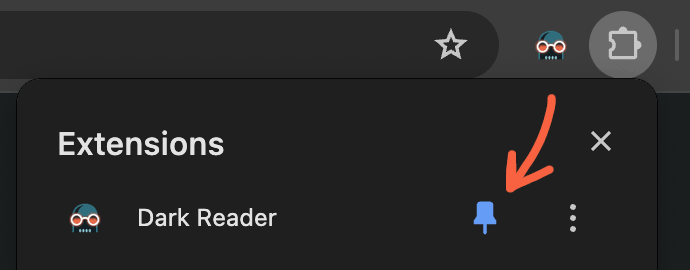
Dark Mode Settings
Top Section
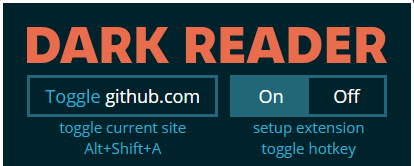
- Toggle site button adds the current site into the ignore list, to remove it from Dark Mode
- On/Off switch enables or disables the extension.
- Click on the links under the buttons to modify the hotkeys for the extension.
- Note: If the toggle button is greyed-out, it means that browser restricts injecting scripts into the current page.
Filter Settings
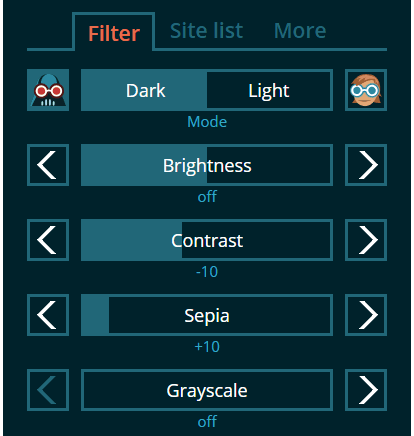
Adjust the mode, brightness, contrast, sepia, and saturation ("grayscale") settings. This can be used to better suit your screen parameters and the lighting in the room.
Custom Site Settings

The Only for button determines whether the above filter settings should only be applied to the current website.
To use, first click the button (which will become highlighted), then adjust the settings as desired for the current website. Click the button again to cancel.
Site List
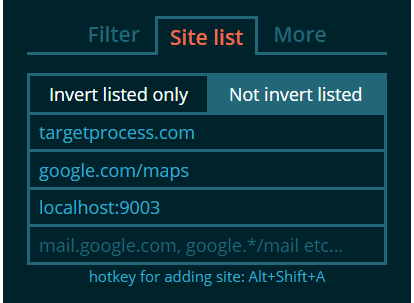
- Use Invert listed only if you wish Dark Reader to work only on listed websites.
- Not invert listed will prevent the extension from working on listed websites.
- Clicking the Toggle button (in Top section) adds the current site into this list.
More Tab
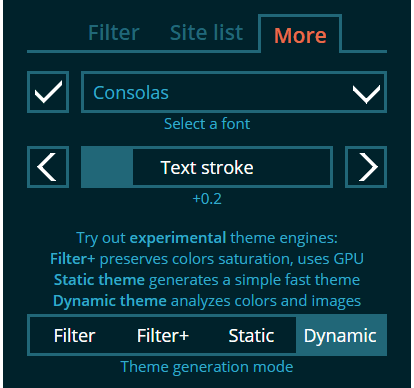
- Pick a font from the list (or enter font name on Firefox), click the checkbox.
- Adjust the text stroke.
- Select a theme generation mode.
Theme Generation Modes

- Dynamic deeply analyzes website style sheets, background images, and vector graphics. Requires some resources on initial page load, but produces the best visual results.
- Filter mode is based on CSS filters. It inverts the whole page and reverts some parts back. Requires GPU resources. It is fast and powerful, but has several issues: it disables text sub-pixel rendering, inverts already dark parts into light, causes lags on large pages, and fails to render some pages in Firefox.
- Filter+ is the same as Filter, but is based on custom SVG filters and handles colors better making images less dull. Works poorly in Firefox.
- Static rapidly generates a basic stylesheet.